When you first install iPlayTV on your Apple TV, you get a 7-day free trial. Once that’s up, there’s a one-time payment of €5.49 to unlock the app for good.
You’ll take care of activation right through the official iPlayTV developer portal. It’s secure, and the setup’s pretty simple.
In this guide, I’ll walk you through how to install iPlayTV and set up your IPTV subscription on Apple TV, step by step. It’s quicker and easier than you might think.
iPlayTV is an Apple TV app that lets you watch your favorite IPTV playlists, but you’ll only find it on Apple TV—specifically the 3rd-generation devices.
Most people agree it’s the best IPTV app out there for Apple TV. The interface is smooth, it works reliably, and honestly, it just feels easy to use. That’s why we recommend iPlayTV over the rest.
Here’s how to get your IPTV channels set up in iPlayTV:
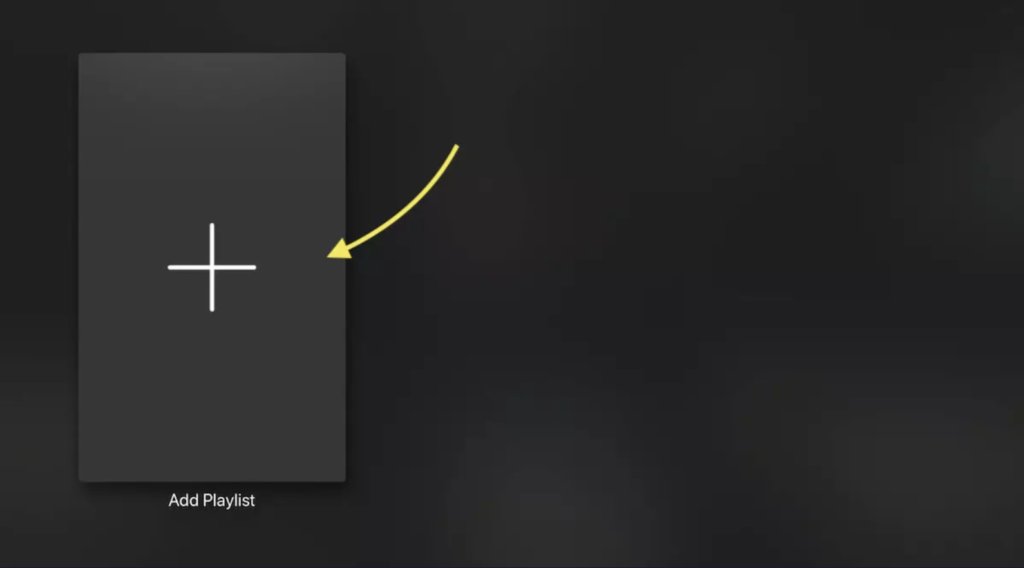
First, open the app on your Apple TV. Then hit “Add a Playlist.” This is where you’ll load your IPTV channels. Just follow the prompts to finish setting things up, and you’ll be watching your shows in no time.
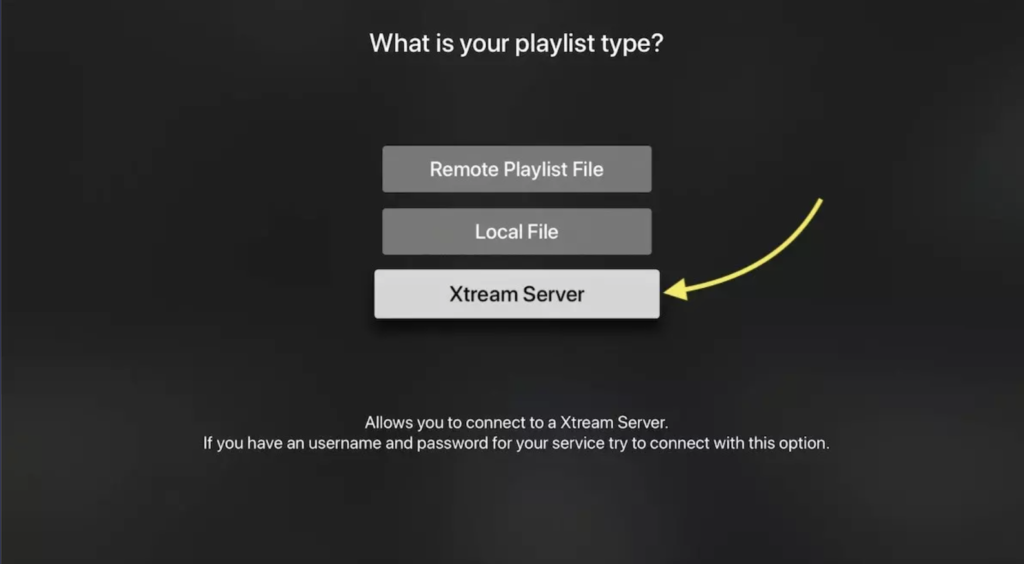
Choose Xtream Server
You’ve got three ways to add an IPTV playlist: use an M3U link, upload a downloaded M3U file, or go with Xtream Server. Honestly, Xtream Server is the way to go. It unlocks advanced features like the Electronic Program Guide and keeps your playlist updated automatically. That means everything just works better and you get a more reliable, hassle-free experience.
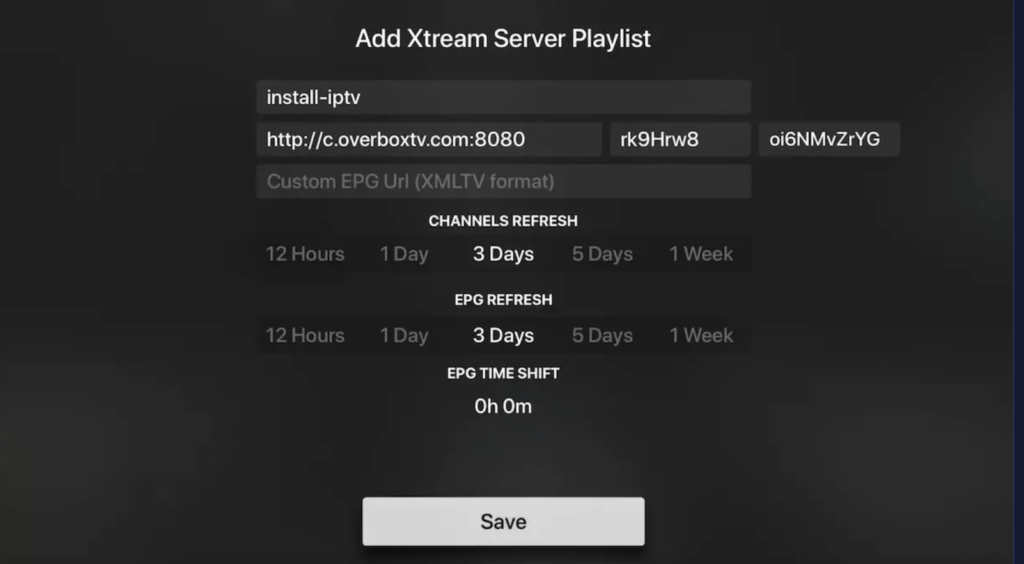
Enter Your Xtream Server Info First
grab your Xtream server details—server URL, username, and password. You’ll get these from your IPTV provider. Don’t have them handy? No worries. You can pull this info straight from your M3U link. Check out the FAQ below if you need help with that. One more thing: give your playlist a name. It can be anything you like (something simple, like “install-iptv,” works). Fill everything in, double-check it, and hit Save when you’re ready to move on.
How to Switch Channels While Watching
While a channel is playing, simply swipe left or right on your remote control’s touchpad to browse through the channel list and switch between channels smoothly.

How to Display the EPG for the Current Channel
To view the Electronic Program Guide (EPG) for the channel you are currently watching, simply swipe from right to left on your remote control.

Now is the perfect time to subscribe to IPTV for iPlayTV.
Place your order today and start watching instantly. https://subscription-iptv.us/